Chris59
Administrators
-
Gick med
-
Besökte senast
Allt postat av Chris59
-
Välkommen till IC5 för svenska översättningar av invision community classic 5.0! Och även för 4.x versionen
-
This is the latest version of Invision Community 5. Visa hela artikeln
-
This is the latest version of Invision Community 5. Visa hela artikeln
-
When guests subscribe and create an invoice without entering an email address, then a huge number of PENDING invoices are created. In order to delete an invoice there is this warning created that says it is recommended to cancel then delete the invoice which requires two steps to delete. It would be nice to to have a choice to do both steps in one click. Also, there is no way to cancel/delete multiple pending guest invoices which would save a HUGE amount of time canceling/deleting these useless pending invoices with no email address or information since these guests simply spend the time to create a useless invoice that clogs the subscription invoices with hundreds of useless invoices. Is there a work around anyone can figure out that would stop guests from doing this? Would appreciate any help. Länk till full forum post
-
This is the latest release of Invision Community 5. Visa hela artikeln
-
This is the latest release of Invision Community 5. Visa hela artikeln
-
This is the latest release of Invision Community 5. Visa hela artikeln
-
This is the latest release of Invision Community v5. Visa hela artikeln
-
Well, without any prior notice that I was aware of, when I updated to the recent Board software the POPULAR NOW Block on right column of my home page disappeared. Kaput. I contacted Support and apparently this Block was removed from the Plan I am on. A similar “Trending Now” Block is available on other Plans. Starting at $250/month. That would put me out of the Discussion Forum business. All for one simple Info Block. This is a blow to my long term community. 22 years running with a Conversion to IPB in 2016. That block is an integral part of my Members Board browsing and participation experience. Could the IPB team PLEASE explain to me the reason and logic behind arbitrarily eliminating this very popular and used info Block for those of us with smaller more intimate Board Communities. That one block and the data needed certainly wasn’t taxing the server enough to warrant this. Länk till full forum post
-
This is the Invision Community 5.0.0 Alpha 10 release. Visa hela artikeln
-
This is the Invision Community 5.0.0 Alpha 9 release Visa hela artikeln
-
I have the Back to Top plugin enabled for my devsite on 4.7. The up symbol appears on both the desktop and the mobile display. It is such a convenience to move up quickly. I find when I look at the Invision Community site on my mobile, specifically Matt's reply to Invision Community 5: Editor Permissions and Custom Embeds, that I had to flick and flick and flick to reach the top of the site and refer to another notification. My suggestion: implement a return to top or back to top as a default feature for the platform, especially since 'plugins' are going away for v5. Länk till full forum post
-
This is the Invision Community 5.0.0 Alpha 8 release. Visa hela artikeln
-
This is the release of Invision Community 5.0.0 Alpha 7 Visa hela artikeln
-
This is the release of Invision Community 5.0.0 Alpha 6. Visa hela artikeln
-
Slider Maker is an application that allows you to create professional sliders, responsive layout and touch support for mobile devices. You can manually build your sliders by adding images, videos, content, animated layers. Or adding slides automatically from Clubs, Forums, Downloads, Calendar, Gallery, Pages, Videobox. It’s focused on performance, stability, accessibility to providing the best experience for user experience in mind. Providing a clean and intuitive user interface in ACP and a smooth experience for the end-users. Back-end features: Create and manage sliders with a clean and intuitive user interface in ACP. Customize the slides with different layers: Heading, Content, Image, Video (Youtube & Vimeo). Sort slides and layers with a simple drag and drop. Easy remove or duplicate a slide. Auto builds a slider from content items (supports Clubs, Forums, Pages, Downloads, Gallery, Blog, Calendars, Our Picks, Nexus Products, Videobox, Tutorials). Auto generates random CSS backgrounds for content items that have no images. Export and import allow you to create backups or move sliders between installations. Preview all your changes directly in the ACP. Breakpoints to change the configuration of the slider depending on screen size. Permission to view sliders. Front-end features: Fully Responsive Touch swipe Transition effects: Fade & Slide Carousel layout Animated and static layers Full Width and Full Window Full screen Auto Height Infinite scrolling Keyboard navigation Thumbnails Lazy loading Video support (Youtube and Vimeo). Different sized images JavaScript breakpoints Display slider in IPS widget (top, bottom, sidebar), or using slider's code to templates to display it everywhere. *NEW* Viewing content in a popup (supports Downloads, Forums, Pages, Calendars, Videobox) Examples: https://demo.ipsappzone.com/slidermaker/example1.html/ (Gallery with animated layers and thumbnails) https://demo.ipsappzone.com/slidermaker/example2.html/ (Slider with animated layers) https://demo.ipsappzone.com/slidermaker/example3.html/ (Carousel) Visa hela artikeln
-
This is the release of Invision Community 5.0.0 Alpha 5 Visa hela artikeln
-
This is the Invision Community 5.0.0 Alpha 4 release. Visa hela artikeln
-
This is the 5.0.0 Alpha 3 release. Visa hela artikeln
-
This is the release of 5.0.0 Alpha 2 Visa hela artikeln
-
Invision Community 5.0.0 Alpha 1 Visa hela artikeln
-
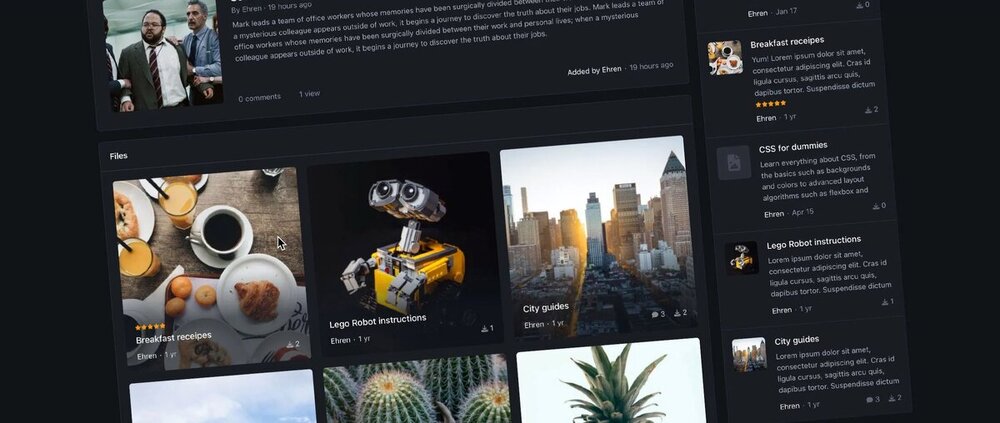
Invision Community 5: Page Builder Introducing new Page Builder tools in Invision Community 5 Widgets are an incredibly powerful tool for displaying curated content of your choice on any page of your community - and despite the extensive array of settings for customizing their data, they've often been limited in terms of their design options. But this changes thanks to the new Page Builder tools in Invision Community 5! Widget Designs Previously in version 4, widgets would often have 2 designs: one for the main content area and a more minimal version for the sidebar. This worked well, but it meant your page was very limited in terms of design as you'd typically need to use the same table-like layout for most widgets. Anything beyond that would typically require a custom block to be coded, often with additional HTML or CSS. Version 5 offers much more customization by allowing you to change the design of each widget with the click of your mouse - no coding necessary! When dragging a widget onto your page, a new toolbar at the bottom of the page appears, holding all of the widget design options. Lets take a look at some below! Grid A familiar a very layout used elsewhere in the suite, the Grid design neatly aligns entries in a grid with a large cover photo sitting up top. A great combination of visual imagery alongside meta data such as entry descriptions. Featured A spacious list and a great way to feature content, pardon the pun. Wallpaper Perfect for content which includes uploaded cover photos or thumbnails! The Wallpaper design stretches each image to make it occupy the entire background, overlaid by a minimal amount of content. A subtle gradient sits behind the text to ensure it's easy to read, even on detailed images. Rows (table) The Rows design is a very familiar one, used very often throughout other areas of the suite. Content is displayed in a neat table, that collapses into a more compact design on small screens. Minimal Great for displaying a lot of content in a compact area! Minimal only shows primary information and hides meta data such as entry descriptions and stats. Great for sidebars, or areas with limited width. Minimal Grid The Minimal Grid design removes large meta information and displays content in a nice, compact grid. A nice option for displaying a lot of content while being cautious of vertical space. Carousel The Carousel option is quite unique because it can be applied in tandem with other widget designs, and is a perfect way to make the existing layouts even more compact. For example, by default, the Wallpaper design is aligned as a grid, but with the Carousel option enabled, the layout is converted into a carousel instead: Here's another example, using the Featured and Carousel options: Fun fact for developers: All of these designs use the exact same HTML structure; the only thing that differs is the class name on the parent element. This makes it incredibly easy to adjust the design of your own widgets without needing to manually code multiple layouts. Widget Areas Version 4 was often quite limiting when it came to aligning widgets in pages. Widgets could be dragged into a stacked, vertical list but that was typically as far as you could go in terms of design. Version 5 introduces a new concept called Widget Areas, which allow you to align multiple widgets in a variety of ways. Lets take a look! To create an area, you simply need to drag one widget on top of another. By default, they'll align themselves into a grid, but can be realigned with ease by using the toolbar at the bottom of the page. The toolbar also holds controls for adjusting the width of widgets, and the gap between them: Widget Designs and Widget Areas in Version 5 make it incredibly easy to create a completely custom page in a matter of seconds. We're really excited for you to get your hands on these new tools in Invision Community 5, and are looking forward to seeing all of these new page designs in the wild, in the very near future! Visa hela artikeln
-
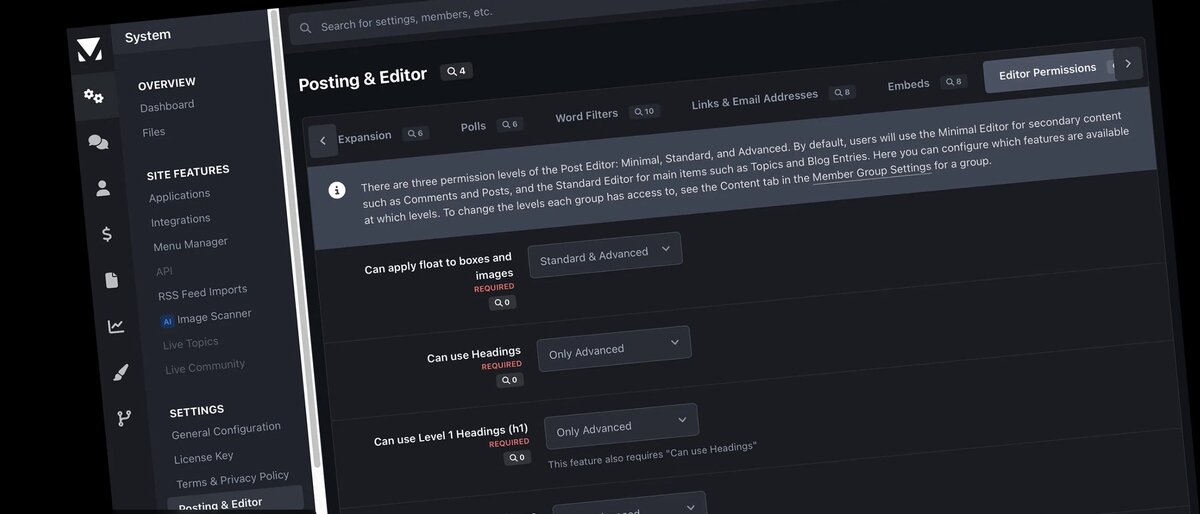
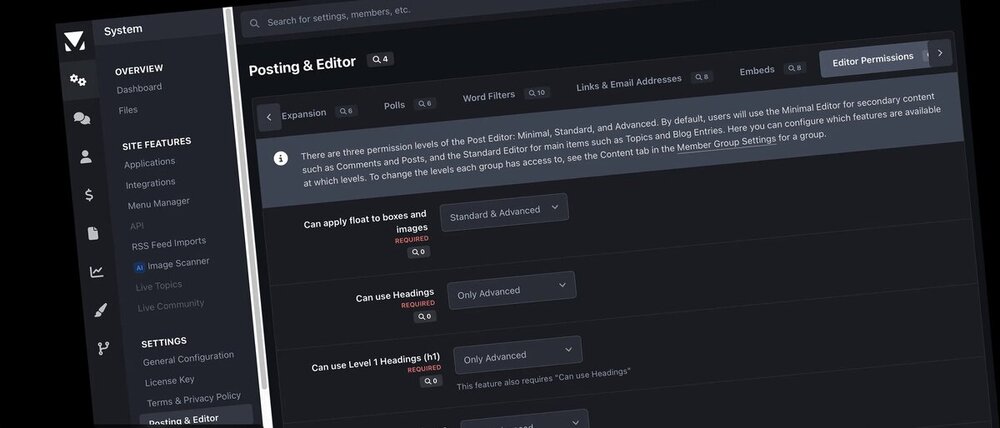
Invision Community 5: Editor Permissions and Custom EmbedsWe recently announced the new Invision Community 5 editor which adds many new exciting features such as semantically correct header tags, custom boxes and more. As the new editor is a leap forward in technology, some legacy features had to be left behind. We received a lot of messages about these changes, and have created new tools based on that feedback to ensure you still have the tools you need. The new features are based around restricting some high level editor functionality for specific member groups and enabling an easy way to add custom embeds. Permission Levels Invision Community 5 puts a lot of new tools in the editor, including header tags, boxes and positioning tools. These are useful features, but perhaps you do not want your members changing the semantic structure of the page by adding H1 tags. Or maybe you don't want them being able to add custom boxes with colors. Based on this feedback, we have introduced a permission levels system. At the heart of the system lies three editor permission levels: Minimal, Standard and Advanced. Specific editor features are assigned to one or more levels. For example, you may only want header tags and content boxes to be for the 'advanced' permission level which only administrators can use. These permission levels are configurable via the Admin Control Panel. When is Each Restriction Level Used? Now that we have set up the permission levels, we need to apply them to member groups. We do this by simplying heading over to the Member Groups section of the Admin Control Panel. In the "Content" section of that form, there are two new options: Default Editor Restriction Level: This is the restriction level the group uses by default, for example in Forum Topics and Blog Posts. Editor Restriction Level for Comments: This is the level used for Comments (including Topic Replies) throughout the Community. When a member has multiple groups, they will use the most permissible editor setting out of all groups. Custom Embeds In response to news that the ability to toggle into 'source mode' and directly edit the underlying structure of the editor document was not implemented because editor technology has moved on, many people told us they used that feature to add custom iframes from specific services they use. We understood the need for custom embeds, and we've added the option to create iframe elements with any whitelisted URL from a link. Additionally, iframes created this way have configurable height and width so you can resize to your liking This feature has two editor permissions: "Can Embed External Content," and "Can Convert Links to iframes". Adding iframes into a post can potentially be a security issue, so strong controls are needed to ensure there isn't abuse of this system. The editor will only allow links to be converted to iframes if the domain has been whitelisted. The whitelist exists in the new tab, Admin Control Panel > System > Posting & Editor > Embeds. The feature can also be entirely disabled from here. That wraps up this round of changes based on your comments. We hope that you enjoy this update to our Invision Community 5 editor and we always appreciate your feedback. Visa hela artikeln
-
Features: This plugin provides search form that will search any content with autocomplete functionality and show results with thumbnails for applications: Downloads, Forums (Topic Thumbnail required), Pages, Gallery, Blog, Calendar, Videobox, Musicbox, Tutorials Settings: Enable/Disable plugin. Permissions for member groups. Max results. Search incomplete words Find results in Content titles only | Content titles and body Search Mode: OR / AND Set default search type for all pages Show category and author in search results. Display Quick Search in mobile & tablet *NEW* Demo: http://demo.ipsappzone.com Visa hela artikeln
-
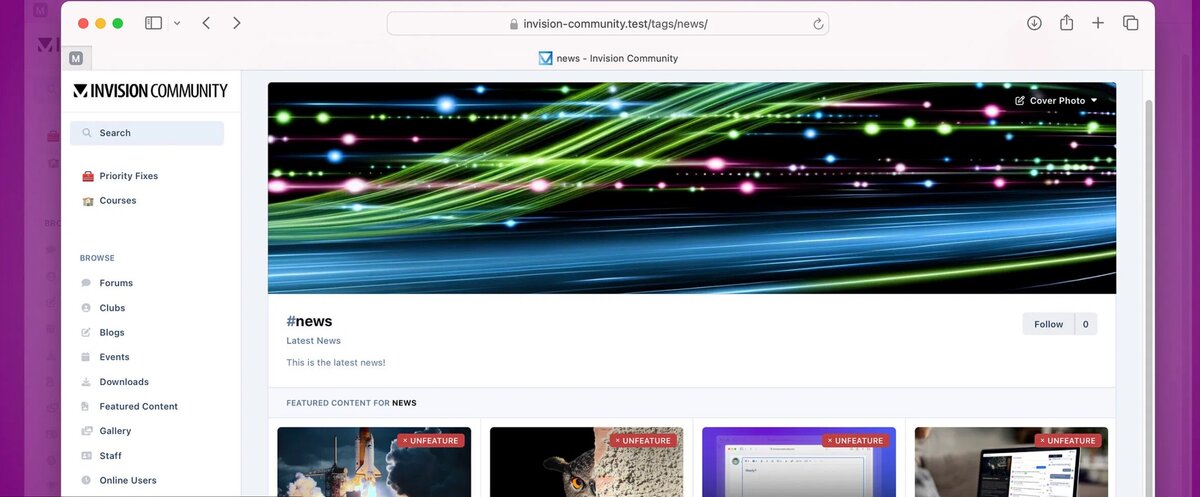
Invision Community 5: Tagging ReinventedInvision Community v5 takes a fresh approach to tagging and content discovery. It overhauls the concept to bring content across different sections together with a beautiful new tag page. Tagging is a powerful concept but underused with Invision Community 4 due to overly complex interfaces in different areas of the suite, a confusing open tagging model option and no real benefit in content discovery beyond a simple list of content items. A driving force behind Invision Community 5 is the question of how we can help time-pressured community members find the content that most interests them. Invision Community has robust taxonomy through forum and category structures, but what about content in less visible areas such as Blogs, galleries or Events? How can we bring those together to homogenise the type of content and focus on the content itself? Taxonomy via tagging across all applications in the community suite is the answer. However, we needed to re-approach how tagging was implemented in the Invision Community to bring our new vision to life. Out with the old The current tagging system is implemented loosely, allowing open tagging, which is more akin to hashtags than high-level taxonomy. Allowing forums, albums, and blog categories to define their own tags turns tagging into more of a status label, which does nothing to help bring disparate content together. In with the new With a new focus on taxonomy and content discovery, we set about rebuilding tagging for Invision Community 5. The UI to tag items is the same, but now each defined, globally available tag has its own page with cover image and ability to feature items within that tag page. A uniform approach to different content items in the UI breaks down the barrier between content types and focuses solely on the content. Tags featured on its page are automatically displayed on the community Featured Content page. Finally, tags can now be followed, allowing your community to get a daily or weekly digest of all new tagged items, bringing people back to read more of the content they love. Let’s take a closer look In Invision Community 5, all tags are defined in the Admin Control Panel. The ability to use open tagging and per-node tags has been removed, but don’t worry—the upgrade system will offer conversion for those tags. Once defined, the tags are available for all content types and feature on a dedicated new tag page. This page features cover photos and more information on the tag via a description. Content from across your suite will be displayed on this page. If a single piece of content has multiple tags, it will appear on every relevant tag page making it easy to have content in multiple areas. If you want to permanently or temporarily feature individual content, perhaps your latest news or product release, you can do so right from the tag page. Featured content will show on the community’s Featured Content Page. Blurring the lines Now that we have an attractive and focused page for each tag, we can start to blur the lines between applications and, indeed, forums and categories, offering a new way to organise content. For some communities, the need for multiple forums to categorise content is diminished, and instead, tagging can be used to separate and find content from across the community. Tags can be featured in the menu system, offering new ways into your community for new visitors, regular community members, and even those who visit daily. Invision Community 5 is fearless in challenging past decisions or streamlining features to make them stronger and more focused. Our new approach to tagging takes a vague and underutilised concept and pushes it front and centre in any content strategy. How will you use it in your community? Visa hela artikeln