
Your client area on our site, is your area in which to manage your client licences, interact with support, make any payments, and generally manage your account on the platform.
Below is an overview of the various functions of your client area.
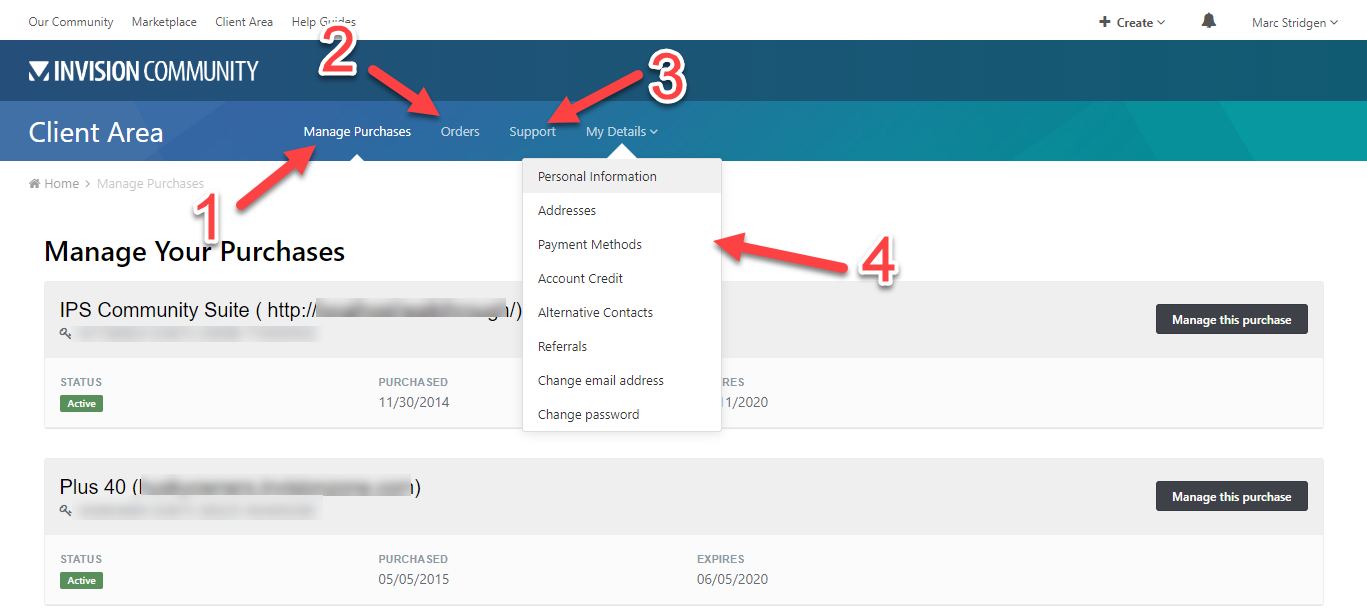
Client Area Overview
Manage Purchases (1)
On first logging into the client area, you will see the "Manage Purchases" section. From the screenshot above, you can see there are 2 items present (one cloud and one self hosted license). You can manage any of these items by selecting the button on the right.
Once you have clicked to manage an item you will be able see information about that purchase, and manage items such as access information, licensed URLs and keys.
In addition, if you would like to add any items to your packages, you can do this from the same location, by selecting the "Manage your community" tab.
Orders (2)
From the orders tab, you can see every order you have had on our system. Items such as new purchases, renewals, and other items.
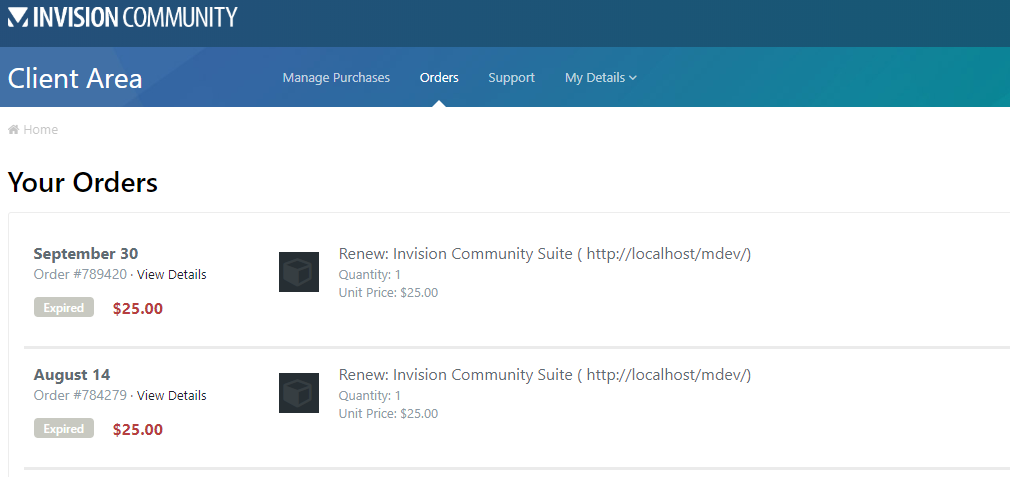
Orders List
If click on the View Details button next to any of the order numbers, you can see more details about that order, including the ability to print your invoice or add a PO number.
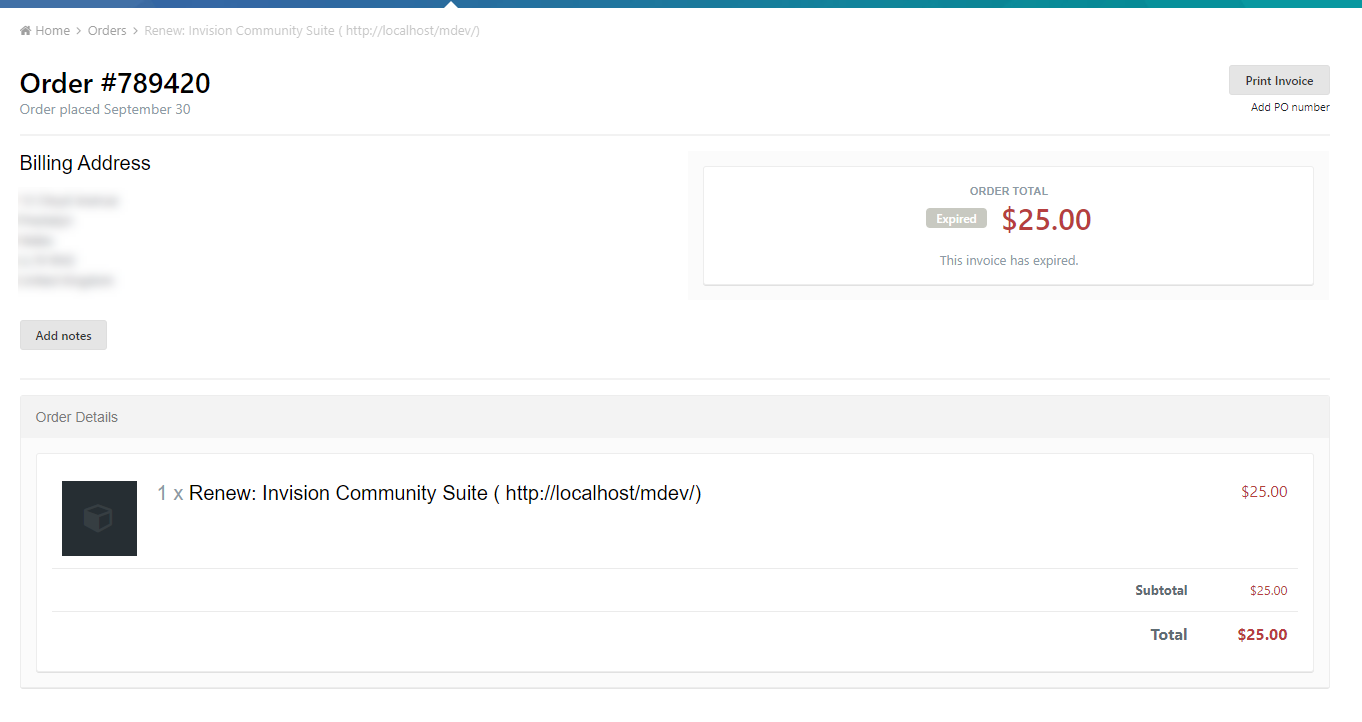
Order Details
Support (3)
Clicking on the support tab will give you the ability to submit a support ticket, or view any existing support tickets.
For more details on obtaining support, please see the following guide
My Details (4)
The "My Details" drop down menu contains many items where you can change/add details. These are detailed in brief below
Personal Information - This is where you can add a telephone number and company name if needed
Addresses - You can change your billing address within this area, and add any other addresses required to use for your licenses.
Payment Methods - You can add payment methods here, which you can then use to make purchases and process renewals on your items. If a valid payment method is on file, this would automatically be used for any renewals.
Account Credit - You can add credit to your account here, which can be used for purchases of IPS products. It is important to note that this cannot be used in the marketplace. For this you must add to marketplace credit on the community.
Alternative Contacts - Here you can add other people who are allowed to contact us on your behalf, either for billing, support, or both. You can also select which purchases to allow them to view.
Referrals - Here you can find your personal referral links for the invision platform.
Change Email/Password - Links for to change each of these corresponding items.